
How to Fix Slow Wi‑Fi at Home: A Simple Troubleshooting Checklist
A practical Fix & Troubleshoot guide for finding what makes home Wi‑Fi slow and fixing it step by step.
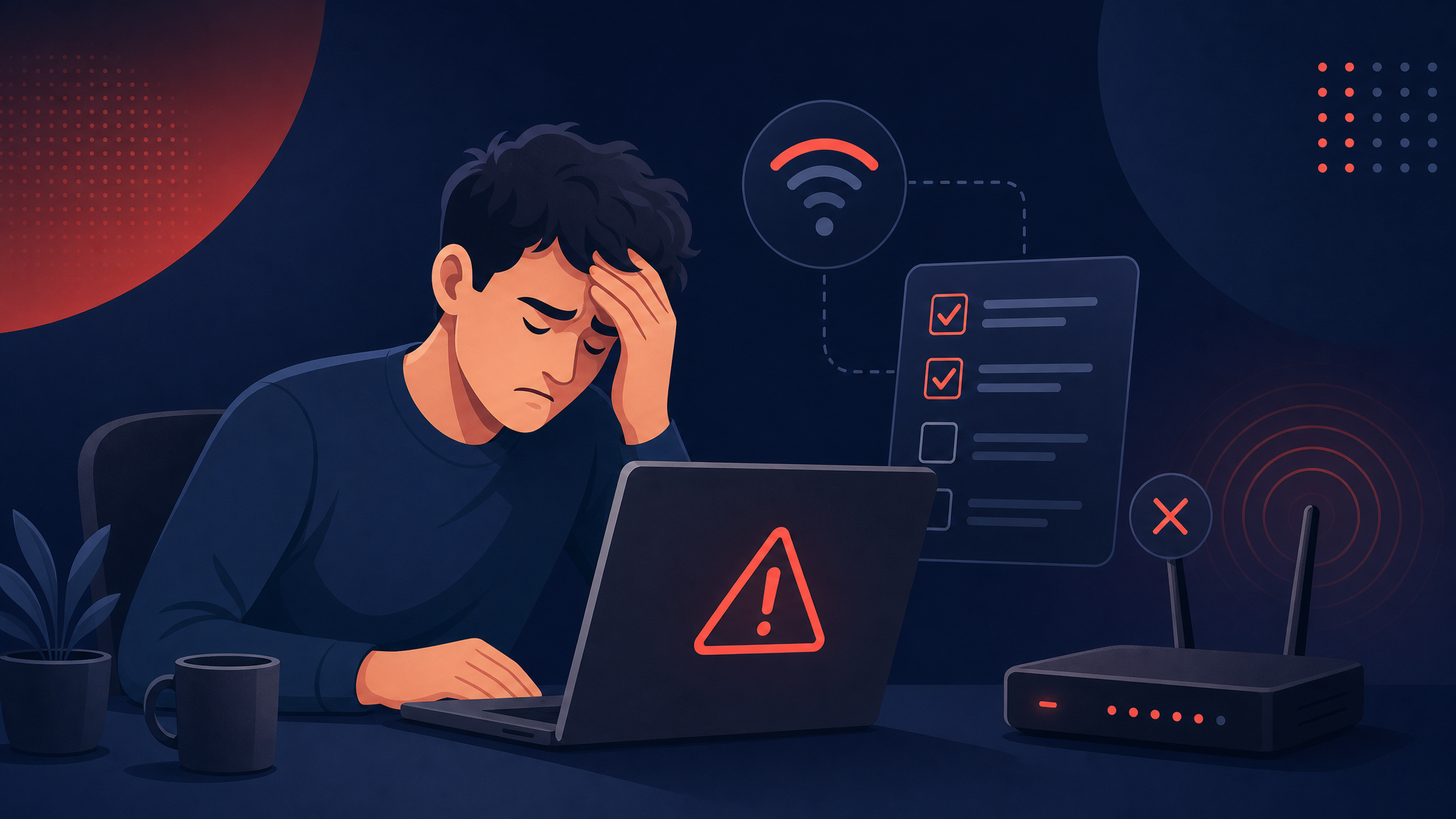
Slow Wi‑Fi can be frustrating because the problem is not always obvious. Sometimes the router is fine but your device is the issue. Sometimes the internet provider is slow. Sometimes the router is simply in the wrong place.
Use this checklist in order. Start with the quick fixes before changing settings.
1. Restart the router first
This sounds too simple, but it fixes many temporary network problems.
- Unplug the router power cable.
- Wait 30 seconds.
- Plug it back in.
- Wait two to five minutes for the connection to return.
- Test Wi‑Fi again.
If speed improves for a few hours but becomes slow again, the router may be overloaded, overheating, or outdated.
2. Test near the router
Stand close to the router and run a speed test.
If Wi‑Fi is fast near the router but slow in another room, the problem is probably signal strength. Walls, floors, metal shelves, mirrors, and distance can weaken Wi‑Fi.
Fix it
- Move the router to a central location.
- Put it higher, not on the floor.
- Keep it away from thick walls and metal objects.
- Avoid hiding it inside cabinets.
3. Check if only one device is slow
Test Wi‑Fi on two or three devices:
- Phone
- Laptop
- Tablet
- Smart TV
If only one device is slow, the router is probably not the main problem.
Fix it
On the slow device:
- Turn Wi‑Fi off and on.
- Restart the device.
- Forget the Wi‑Fi network and reconnect.
- Install system updates.
- Close apps that may be downloading in the background.
4. Check your internet speed with a cable if possible
If you have a laptop with Ethernet, connect it directly to the router and run a speed test.
- Fast with cable, slow on Wi‑Fi: Wi‑Fi signal or router wireless settings are the issue.
- Slow with cable too: the internet provider, modem, or plan may be the issue.
This test helps separate Wi‑Fi problems from internet provider problems.
5. Look for bandwidth hogs
Wi‑Fi can feel slow when another device is using most of the connection.
Common causes:
- Someone streaming 4K video
- Game downloads
- Cloud backup syncing many files
- Windows/macOS updates
- Security camera uploads
- Torrent or large file downloads
Pause big downloads and test again.
6. Switch between 2.4 GHz and 5 GHz
Many routers have two Wi‑Fi bands:
- 2.4 GHz: longer range, slower speed, better through walls
- 5 GHz: faster speed, shorter range, weaker through walls
If you are close to the router, use 5 GHz. If you are far away, 2.4 GHz may be more stable.
Some routers combine both bands under one name. If yours separates them, try both.
7. Reduce interference
Wi‑Fi can be affected by nearby electronics and other routers.
Try moving the router away from:
- Microwave ovens
- Bluetooth speakers
- Baby monitors
- Cordless phones
- Large TVs
- Metal shelves
If you live in an apartment, many nearby routers may also interfere with yours.
8. Update router firmware
Router firmware is the software inside your router. Updates can improve stability and security.
Open your router admin page or router app and look for:
- Firmware update
- Software update
- System update
If you are not sure how to access it, check the label on the router or search the router model online.
9. Change the Wi‑Fi password if unknown devices are connected
If too many unknown devices are using your Wi‑Fi, speed can drop.
Log in to the router and check connected devices. If you see devices you do not recognize, change the Wi‑Fi password.
After changing it, reconnect only your trusted devices.
10. Know when to upgrade
You may need a better router or mesh Wi‑Fi system if:
- Your home has many rooms or thick walls
- Wi‑Fi is always weak far from the router
- The router is more than five years old
- Many people use the network at the same time
- Smart TVs and phones disconnect often
For larger homes, a mesh Wi‑Fi kit is usually better than one powerful router in a corner.
Quick troubleshooting summary
Try these in order:
- Restart the router.
- Test speed near the router.
- Test multiple devices.
- Check cable speed if possible.
- Pause big downloads.
- Try 2.4 GHz vs 5 GHz.
- Move the router away from interference.
- Update router firmware.
- Change the Wi‑Fi password if unknown devices are connected.
- Upgrade router or use mesh Wi‑Fi if coverage is the real issue.
Final tip
Do not change many settings at once. Make one change, test, then continue. That way you can tell what actually fixed the problem.